






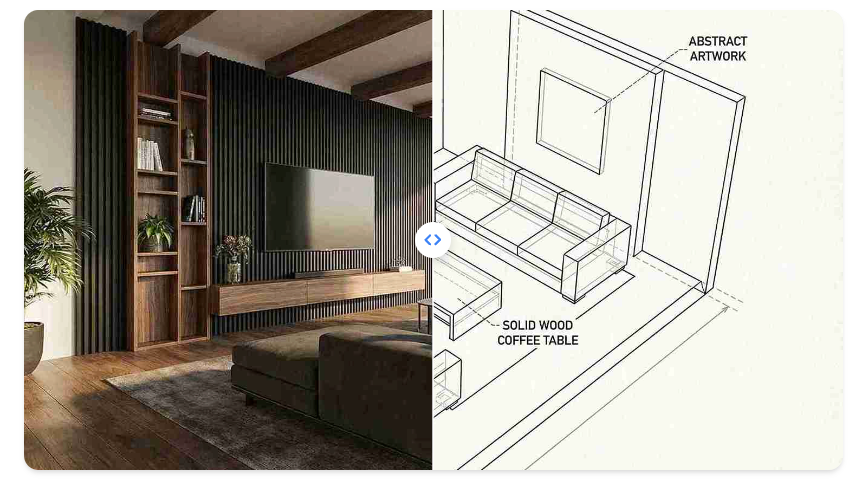
Redecorating a home often feels like a giant puzzle. You might have a vision in your head, but putting it into words for a contractor or a store clerk is difficult. This is why digital tools have become so popular for homeowners and renters alike. You can now use AI room design software to see exactly how a new sofa or a different paint color will look in your space. These tools take a photo of your current room and transform it into something new in seconds. It removes the stress of wondering if a specific style will actually work in your house.
However, sometimes the AI makes a small mistake during the generation process. It might place a chair in a strange spot or blur the edges of a window frame. You do not have to settle for a messy or unrealistic image. You can use a free AI photo editor online to fix those tiny details and make the design look professional. Combining these two tools gives you the power of a professional interior designer without the high cost. You get to be the creator and the editor of your own living space.
This workflow is perfect for anyone who wants to visualize a renovation before spending money. It allows you to experiment with bold colors or minimalist layouts that you might be afraid to try in real life. By the time you finish the process, you will have a clear image that looks like a real photograph. This makes it much easier to shop for furniture or explain your ideas to a painter. The following guide will show you exactly how to master this two-step process
The Step-by-Step Guide to AI Interior Design
Step 1: Prepare and Take Your Photo
The quality of your final design depends heavily on the photo you start with. You do not need a professional camera, but you do need to follow a few basic rules. Clear out any small items that do not belong in the room, such as laundry, trash, or toys. You do not need to move heavy furniture like beds or sofas, as the AI will recognize these and replace them.
Try to take the photo during the day. Natural light helps the software understand the depth and texture of your walls and floors. Stand in a corner or against a wall to get the widest view possible. Hold your phone at chest height and keep it level. If the photo is tilted, the AI might generate furniture that looks like it is sliding off the floor. Once you have a clear, bright shot, you are ready to move to the next stage.
Step 2: Generate Your New Room Style
Upload your photo to the room design tool. Most platforms will ask you to select a specific room type, such as a bedroom, kitchen, or living room. After that, you will choose a design style. You might see options like Scandinavian, Industrial, or Bohemian. Pick the one that matches your personal taste.
The AI will then process your image. It looks at the layout of your walls and the position of your windows. It then overlays new textures, furniture, and lighting. This process usually takes less than a minute. If you do not like the first result, you can usually click a button to generate a new version using the same settings. Each version will offer a slightly different take on the style you chose.
Step 3: Select and Export the Best Results
The AI will likely give you several different options. Do not just pick the first one you see. Look closely at how the software handled the corners of the room and the lighting. Some versions might have better furniture placement, while others might have a better color scheme on the walls.
Save at least three or four of your favorite versions to your computer or phone. It is better to have options to choose from when you start the editing phase. Look for images that have the most realistic proportions. Even if there is a small glitch, like a floating lamp or a blurred rug, save it if the rest of the room looks great. You will fix those small errors in the next step.
Step 4: Refine the Image with a Photo Editor
Now it is time to polish your design. Open your favorite generated image in the photo editor. This is where you act as the final quality control. Use the object removal tool to get rid of any strange artifacts the AI might have created. Sometimes AI adds extra legs to chairs or puts a picture frame in a weird spot.
You can also use the editor to adjust the lighting. If the generated room looks a bit too dark or the colors seem dull, boost the brightness and saturation. This makes the image pop and look more like a real photo from a design magazine. If the AI changed a part of the room that you wanted to keep, you can sometimes use the editor to blend the original photo back in. This step ensures that the final result is exactly what you want.
Step 5: Final Comparison and Planning
Once you have finished editing, compare your new design to the original photo of your room. This helps you see the scale of the changes you are planning. You can see if the new furniture layout actually fits the space or if the new wall color makes the room feel too small.
This final image serves as your blueprint. You can take it to furniture stores to find pieces that look similar to the ones in the image. You can also use a color-matching app to find the exact paint codes for the walls shown in your design. Having a visual guide makes the entire renovation process much smoother and faster.
Tool Comparison for Design Success
| Tool Category | Primary Function | Best Use Case |
| Room Design AI | Structural Changes | Swapping furniture styles and wall colors |
| Photo Editor AI | Visual Cleanup | Removing AI glitches and fixing lighting |
| Combined Workflow | Full Visualization | Creating realistic mockups for renovations |
| Manual Editing | Fine Details | Matching specific paint brands or textures |
Tips and Best Practices for Better Results
To get the most out of these tools, you should focus on the details of your input. The more information you give the AI, the better the output will be. If your room is very cluttered, the AI might get confused about where the floor ends and the walls begin. Spend five minutes tidying up before you take your photo. It makes a huge difference in how the software perceives the space.
Another tip is to pay attention to the resolution. When you export your design from the first tool, try to save it in the highest quality possible. If the image is blurry, the photo editor will have a hard time making it look sharp. High-resolution images also allow you to zoom in and see the textures of the fabrics and woods the AI has chosen.
Think about the time of day in your design. If you want a cozy evening vibe, you can use the photo editor to lower the exposure and add warm tones. If you want a bright morning look, increase the highlights. You have total control over the mood of the room once you move the image into the editor. Do not be afraid to experiment with different filters to see how they change the feeling of the space.
Common Mistakes to Avoid
One common mistake is trying to change too many things at once. If you ask the AI to completely change the architecture and the furniture, the result might look like a cartoon. It is often better to keep the basic structure of your room and just focus on changing the decor and colors. This keeps the image grounded in reality and makes it easier to achieve in real life.
Another error is ignoring the scale of the objects. Sometimes AI will place a massive dining table in a room that is clearly too small for it. Always look at the proportions in the generated image. If something looks physically impossible, use the photo editor to crop the image or remove the offending object. You want a design that you can actually build, not just a pretty picture that cannot exist in the real world.
People also often forget to check the lighting consistency. If the light in the photo is coming from a window on the left, but the AI puts shadows on the left side of the furniture, the image will look fake. You can use the photo editor to fix these shadows and make the lighting look natural. Small fixes like this are what separate a quick AI sketch from a professional-looking design.
Finally, do not rely 100 percent on the AI for your final decisions. Use the tools as a source of inspiration and a way to test ideas. Always measure your actual room before buying any furniture you saw in a digital design. AI is great for style and layout, but it does not know the exact measurements of your walls.
Conclusion
Combining different AI tools is the smartest way to plan a home makeover. You get the creative power of a design generator and the precision of a photo editor. This two-step process allows you to explore endless possibilities without any risk. You can see your room in a dozen different styles before you ever pick up a paintbrush.
By following this tutorial, you can create high-quality visuals that look like they were made by a professional. You save time, reduce stress, and avoid making expensive mistakes in your home. Whether you are just moving into a new place or want to refresh your current one, these tools are the best way to start your journey. Grab your phone, take a photo of your room, and start designing your dream space today.

